

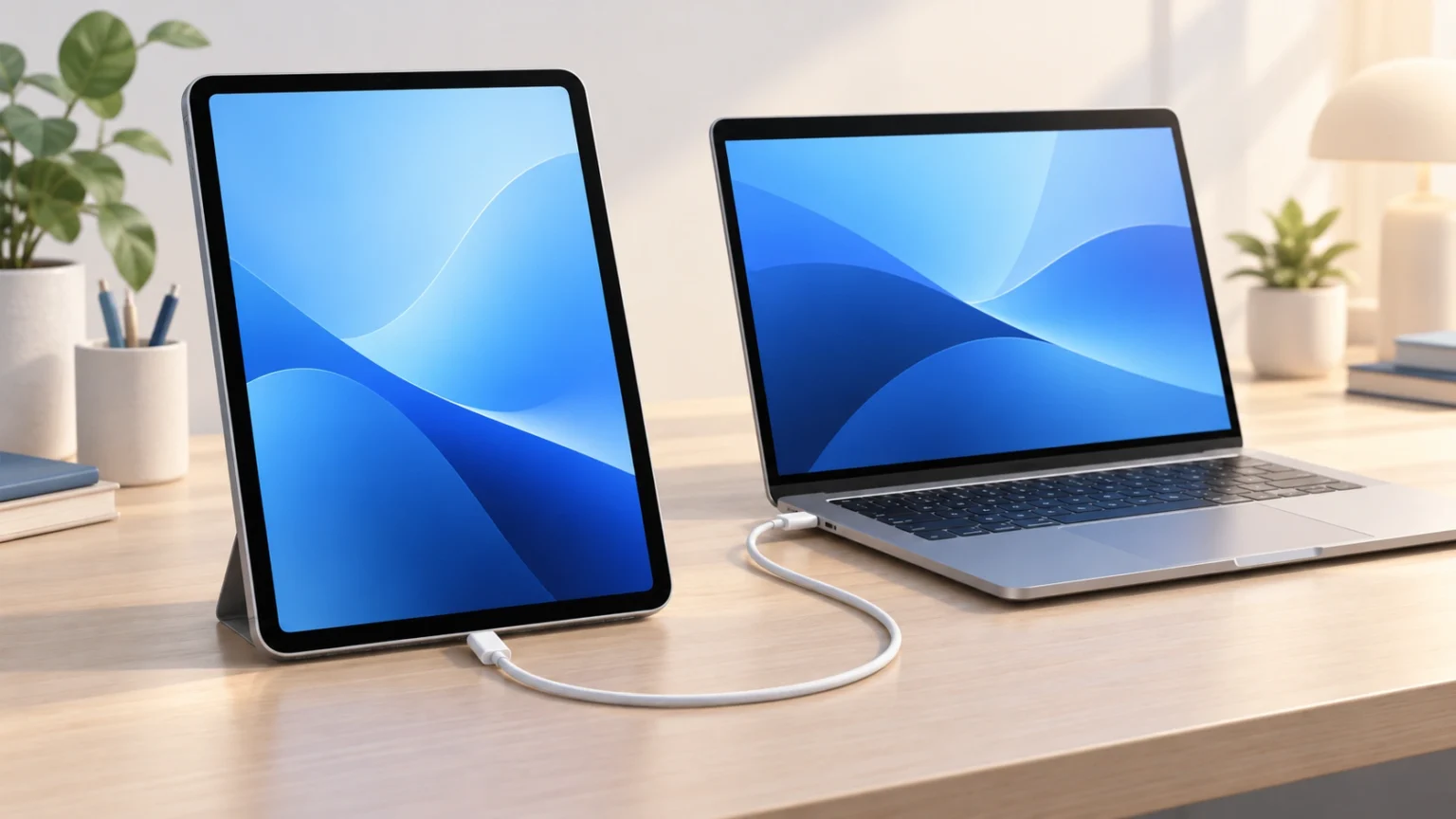
If your computer says “To allow access, please respond on your iPad,” check the iPad for a permission request. Unlock it with your passcode, then approve Trust if this is a computer you intend to use for your data. Clicking through the computer’s message alone does not complete Apple’s trust flow. [11]
The quoted message can appear on the computer, even though it asks you to act on the iPad. Historical iTunes reports document this wording; it is not a verified universal message in today’s Finder or Apple Devices app. [2]
First work out whether the iPad can unlock, whether the computer detects it, and whether its screen responds. Those symptoms need different next steps.
This guide is based on Apple’s published instructions. We have not tested these steps on a specific iPad and computer combination.
First identify which situation you have
| What you see | Where to start |
|---|---|
| The iPad unlocks, but no trust prompt appears | Reconnect and check both screens; then follow the missing-prompt section. |
| The iPad does not appear in the computer app | Check the USB data connection and app selection. |
| The screen is frozen or touch does not work | Follow the frozen-screen branch before changing settings. |
| You cannot remember the passcode | Use Apple’s passcode-recovery guidance. Reconnecting does not solve a forgotten passcode. |
| It belongs to a school or employer | Ask the administrator whether computer pairing is restricted. |
The steps for each branch, including their limits, are explained below.
If you can unlock your iPad
Reconnect and check both screens
Disconnect the cable, unlock the iPad, and reconnect it. Select the device in Finder or Apple Devices and click Trust if requested; in iTunes, the computer-side option may be Continue. Then respond to the trust request on the iPad. [11] Trust grants access to content, so approve only a computer you trust. [1]
On a Mac, also look for an accessory connection alert and choose Allow if you intend to connect this iPad. That Mac-side permission is separate from the iPad’s trust request. [3]
Check the cable, port, and device detection
Use a USB cable that supports data as well as charging. A charging connection alone does not establish that the cable can transfer data. Try another suitable cable and another USB port. As a simple isolation check, connect directly to the computer rather than through a hub.
If necessary, try another computer. Apple also recommends checking the iPad’s charging port for debris when the device gives no connection response. If it remains undetected, follow Apple’s computer-recognition guidance rather than repeatedly waiting for a prompt. [3]
Open the appropriate computer app
| Computer setup | App to check |
|---|---|
| Mac with macOS Catalina or later | Finder |
| Mac with macOS Mojave or earlier | iTunes |
| Windows PC | Apple Devices; iTunes is also documented for applicable setups |
These app distinctions come from Apple’s software-version guidance. [4] Apple’s current Windows connection instructions use Apple Devices, where a recognized device appears in the sidebar. In Finder, choose View → Show Sidebar if the sidebar is hidden. [3]
Update software and restart
Check for updates to the computer OS, iPadOS, and the Apple app you use. Apple recommends current software when diagnosing recognition problems. [1], [3]
Restart the computer and the iPad, then reconnect. Try again after each change so you know which step affected the result. [1]
To restart a responsive iPad:
- Without a Home button: Hold either volume button and the top button until the power slider appears.
- With a Home button: Hold the top button until the power slider appears.
Drag the slider, wait 30 seconds, then hold the top button to turn it on again. Use the force-restart instructions below if it is frozen. [5]
If Trust This Computer never appears
After the simpler checks, Apple recommends resetting location and privacy settings for a missing or unresponsive trust alert. This clears remembered computer trust, so reconnect and approve again afterward. [1]
Open Settings → General → Transfer or Reset iPad → Reset → Reset Location & Privacy. [1]
This resets location and privacy preferences; it is not a photo-erasing operation. Apps may need permission again as you use them. Do not choose Erase All Content and Settings, which removes your content. Apple documents these as different reset options. [6]
Should you reset network settings?
Apple lists Reset Network Settings as a later troubleshooting step. It resets saved Wi-Fi networks and passwords, cellular settings, and previously used VPN and APN settings. Use it only after considering those consequences. [1]
The path is Settings → General → Transfer or Reset iPad → Reset → Reset Network Settings. Network settings installed through device management or configuration profiles have separate rules. For a work or school iPad, consult the administrator first. [6]
If the iPad is locked, frozen, or the screen does not work
The screen is frozen
Try a force restart using the buttons for your model:
- Without a Home button: Quickly press and release the volume button closest to the top button. Quickly press and release the other volume button. Hold the top button until the Apple logo appears.
- With a Home button: Hold the Home and top buttons together until the Apple logo appears.
These are Apple’s frozen-screen instructions. If the iPad still does not respond or start, use Apple’s further troubleshooting or service route. [7]
The display or touch controls are broken
If you cannot interact with the screen to complete the required approval, ask Apple or an Apple Authorized Service Provider about repair. Do not assume that a computer-side click can replace the iPad’s approval or that a new backup will be possible. Apple’s standard trust procedure requires confirmation on the device. [1], [7]
You forgot the passcode
A forgotten passcode needs a recovery route, rather than repeated trust-prompt troubleshooting. Start with Apple’s iPad passcode guidance, which points to Passcode Reset first, then other reset options where applicable. Its computer recovery-and-restore process deletes the iPad’s data and settings, including the passcode. Do not use Restore as a routine fix for a missing trust alert. [8]
Erasure also does not automatically remove Activation Lock. If Find My enabled it, the linked Apple Account may still be required to reactivate the iPad; remote erasure can leave that protection in place. [9]
When to contact Apple or your device administrator
For a school or work iPad, ask the administrator before trying further resets. Apple documents a supervised-device restriction that can limit pairing to the Mac that originally supervised the device using Apple Configurator. A missing connection can therefore require an administrator’s help. [10]
Contact Apple if the iPad remains undetected after cable, port, software, and restart checks, or if its screen prevents approval. [3], [7] Have these details ready:
- iPad model and whether it unlocks and responds to touch.
- iPadOS version, available under Settings → General → About when accessible. [4]
- Computer OS and Finder, Apple Devices, or iTunes version, as applicable.
- Exact message and which screen displays it.
- Cables, ports, and other computers already tried.
Article sources
Sources checked 16 October 2026. Numbered references above should remain linked near the relevant claims in the eventual article.
- Apple: About the Trust This Computer alert
- Historical user report on Apple Support Community, May 2014 — first-person evidence of legacy wording and computer-side context only; not used as troubleshooting authority or evidence of current app behavior.
- Apple: If your computer does not recognize your iPhone or iPad
- Apple: Find the software version
- Apple: Restart your iPad
- Apple iPad User Guide: Reset settings to their defaults, iPadOS 26 edition — official regional English edition; the US guide endpoint could not be retrieved. The reset path was independently checked against Apple’s US trust article. No claim that the guide’s selected OS edition is the latest release.
- Apple: If your iPad does not respond
- Apple: Reset your iPad and passcode using a Mac or PC
- Apple: Activation Lock
- Apple Platform Deployment: Device management restrictions
- Apple: Back up your iPhone or iPad with your Mac — device-side trust and passcode confirmation. Computer-side Apple Devices/iTunes options in the reconnect step are additionally supported by source 1.